


Negative space and visual hierarchy
To achieve an uncomplicated workspace where users could easily and immediately locate key informations on a busy page, negative space and visual hierarchy was paramount.
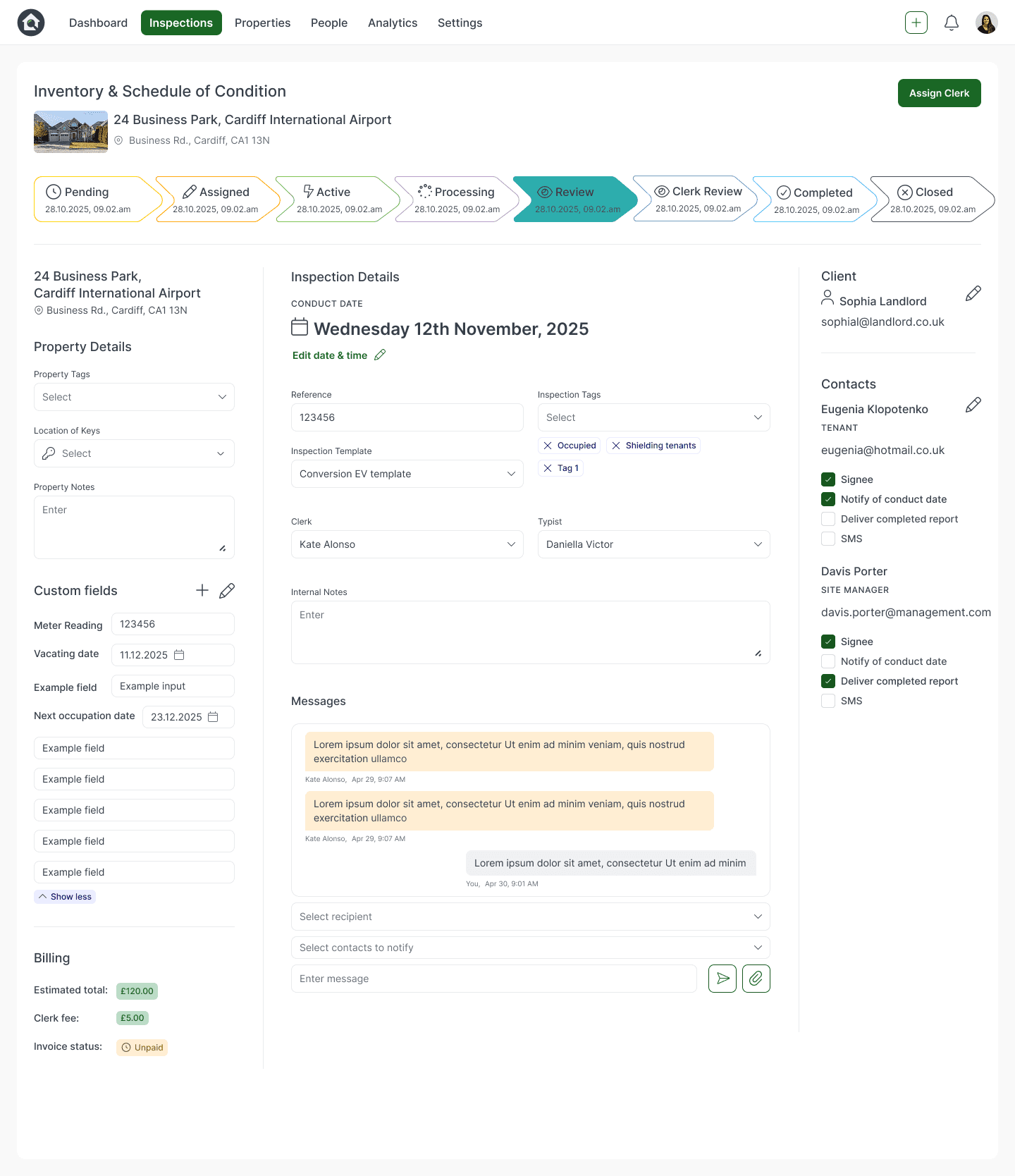
I ensured each section was clearly signposted with a slightly larger, bolder subheading text, and each section and column of the page had consistent padding rules applied between them. I also added a thin grey divider line between each column and the breadcrumbs to clearly define chunks of information; this helped the multiple contents of the page to be simpler, more logical, and pleasant to digest.
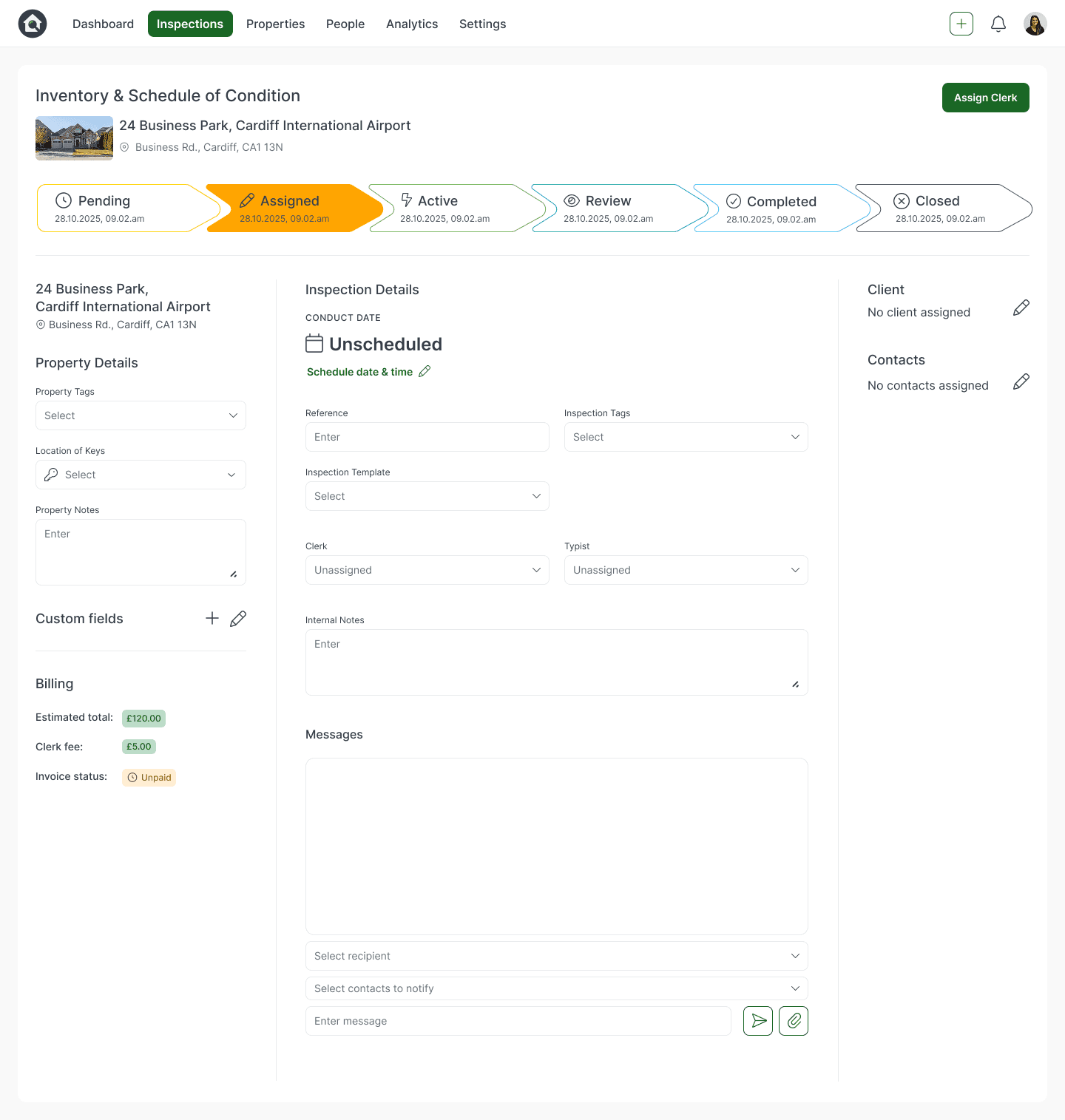
Empty Inspections Page
Mobile Inspections Page (collapsed closed)
Mobile Inspections Page (collapsed open)
Full/Active Inspections Page
FINAL DESIGNS
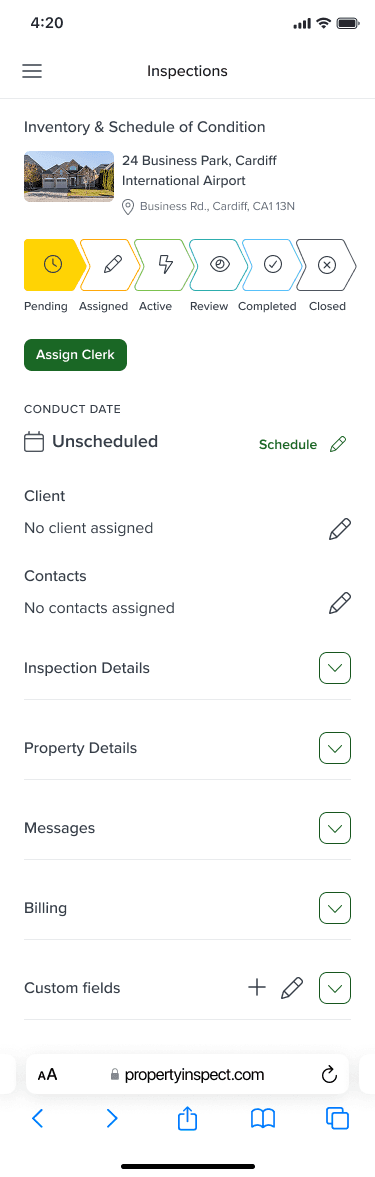

Mobile responsive designs
In order to optimise the Inspections Details page across mobile screens, collapsable sections were added for each group of informations.
This made navigating across an extensive list of data significantly easier for users through clear signposting and putting the users in control of what and how much they see on limited mobile screens.
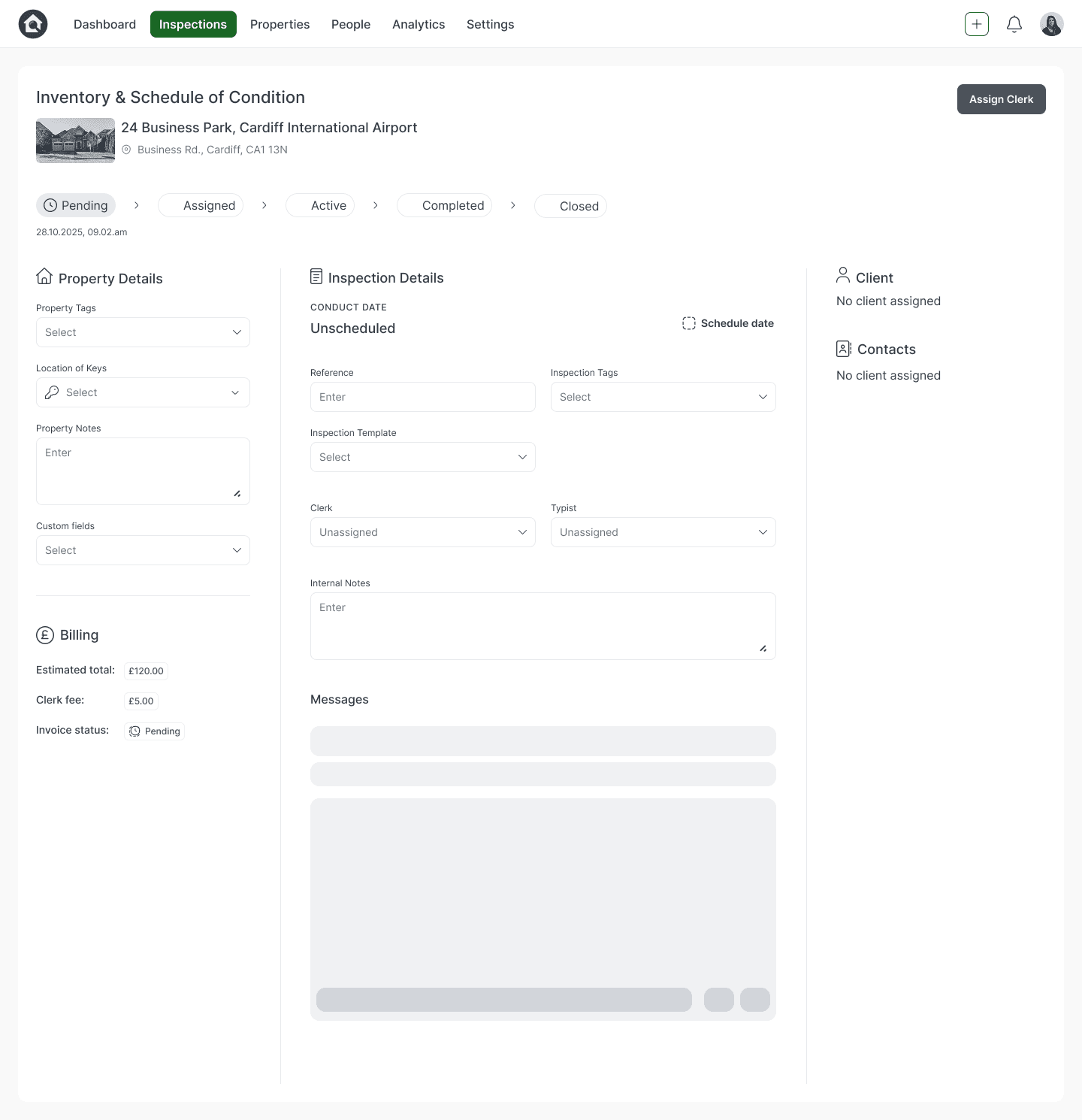
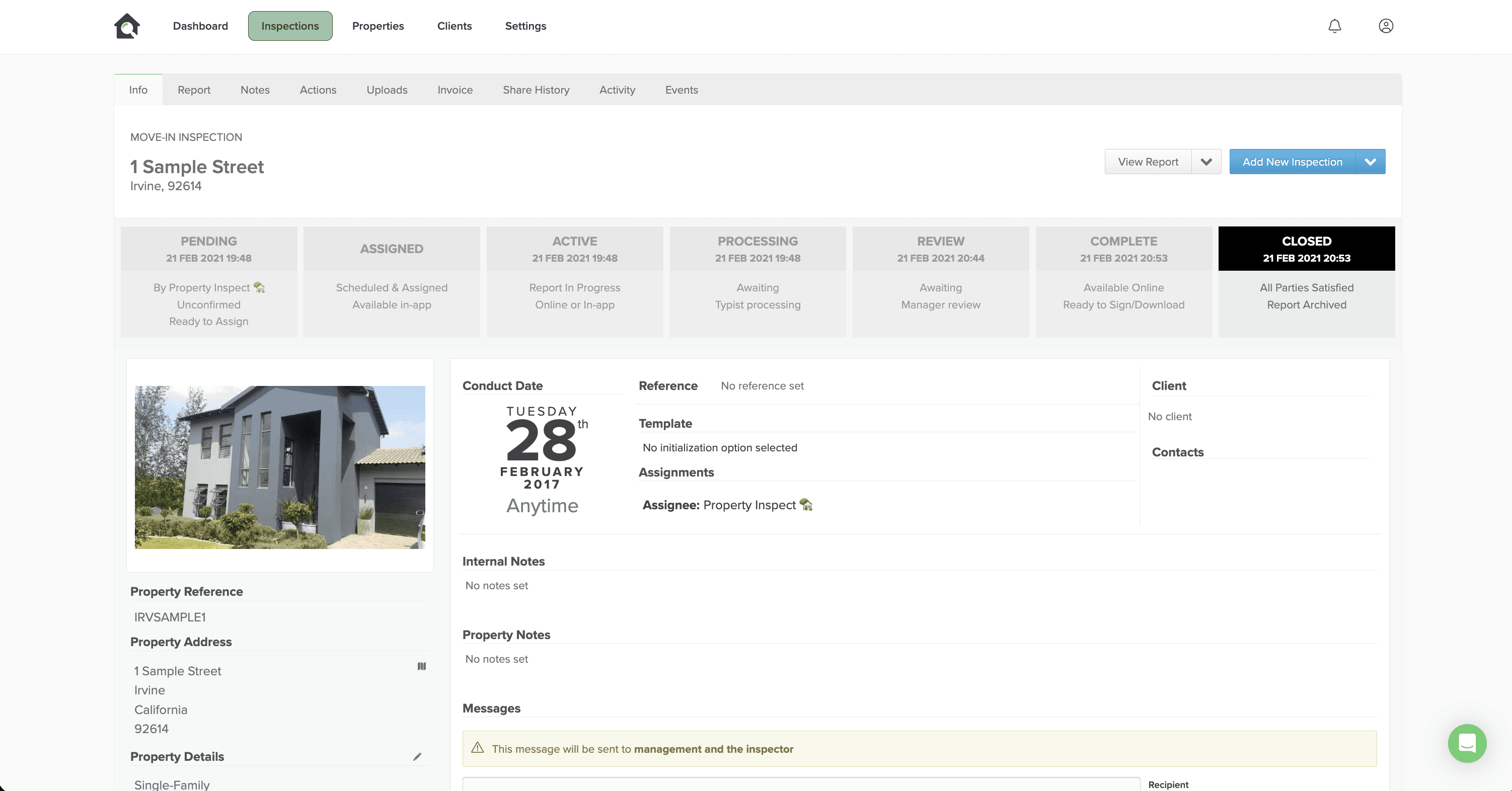
Using the results of the card sorting exercise, I wireframed the design and information architecture of the page.
There was a clear pattern of three information columns from the previous design; this layout was maintained and evolved to retain familiarity and intuitiveness for the experienced power users who were comfortable with the previous interface.
Aligning with usability best practices of employing a F-shaped reading pattern where eyes go to the left for the the most essential information, I placed important details like property, keys and billing information on the left-hand column.
In the middle and widest column sat the conduct date and time in Heading caps to draw attention to the important inspection deadline, conduct date and reference. This middle column also included template, relevant notes, assigned Clerk, reference ID, and messaging feature towards the lower half of the page. Lastly, additional details like contact and client details sat alone in the right hand column where multiple contact informations could be comfortably populated.
Sketching out low-fidelity designs
WIREFRAMING
Inspection Details wireframe
Previous Inspection Details page
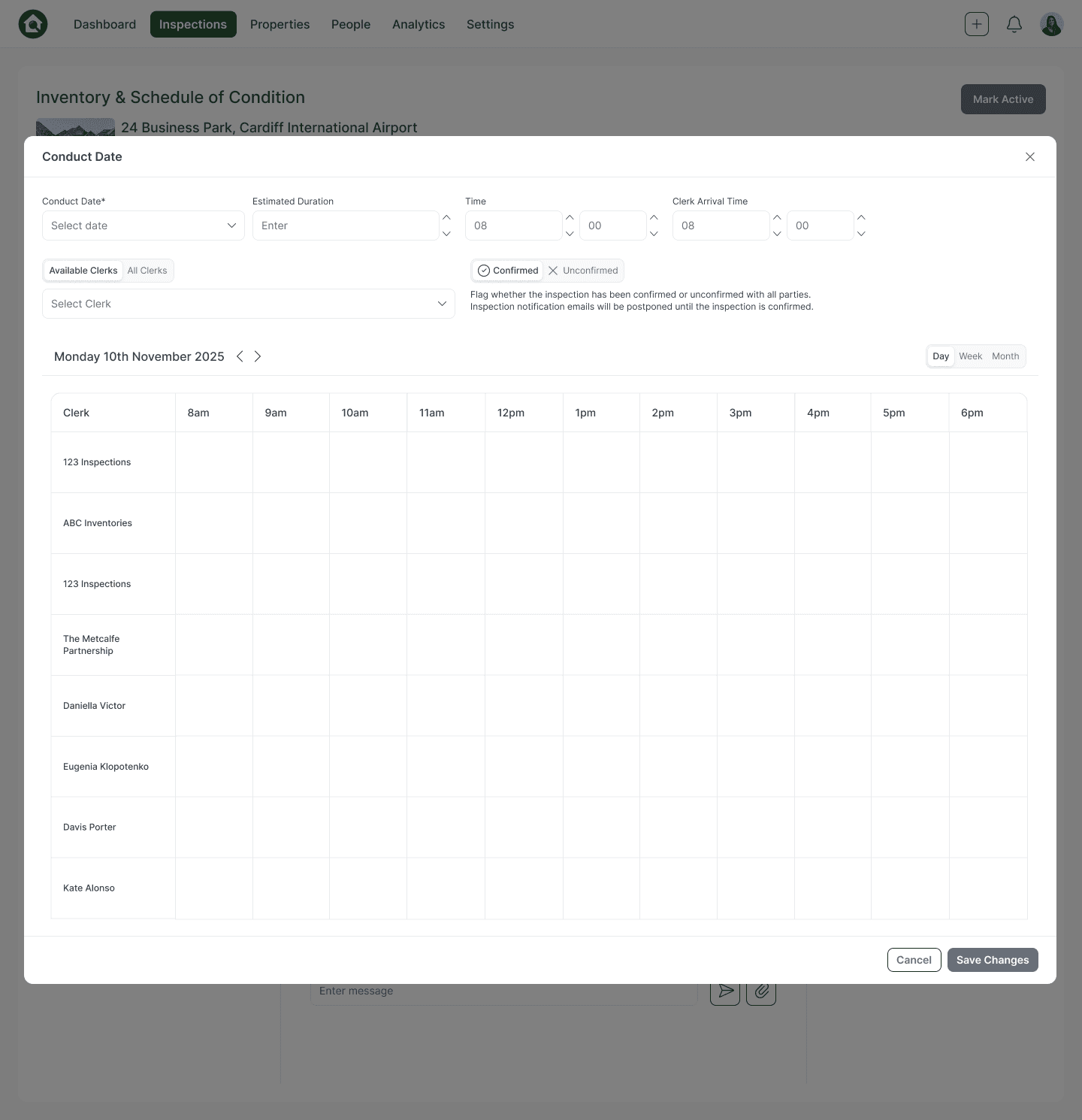
Edit conduct date modal wireframe
The Problem:
The Inspections page on Property Inspect is the main workspace for an Inspection job to be completed. It houses all the important information, contacts, and correspondence needed.
However, when carrying out screen observations on newer users to test how straightforward and easy it was to use, they took longer periods of time than power users who has been using the page for several years to find certain sections and fill or edit them.
When gathering accompanying qualitative data through surveys, they expressed they found the layout of information confusing.
For example, the sent messages appeared at the bottom instead of at the top of the message fields, and finding key informations like location of keys, custom notes, and billing details was harder to instantly locate.
All in all, the design and information architecture was not optimised for important information and correspondence to be as effortlessly discovered and comprehended as possible.
The Solution:
An uncomplicated, intuitive design tailored to be easier to comprehend and use for all users, not just power users.
The new design reduced time-on-task to locate and fill out or edit key informations by 82%.
Building the architecture
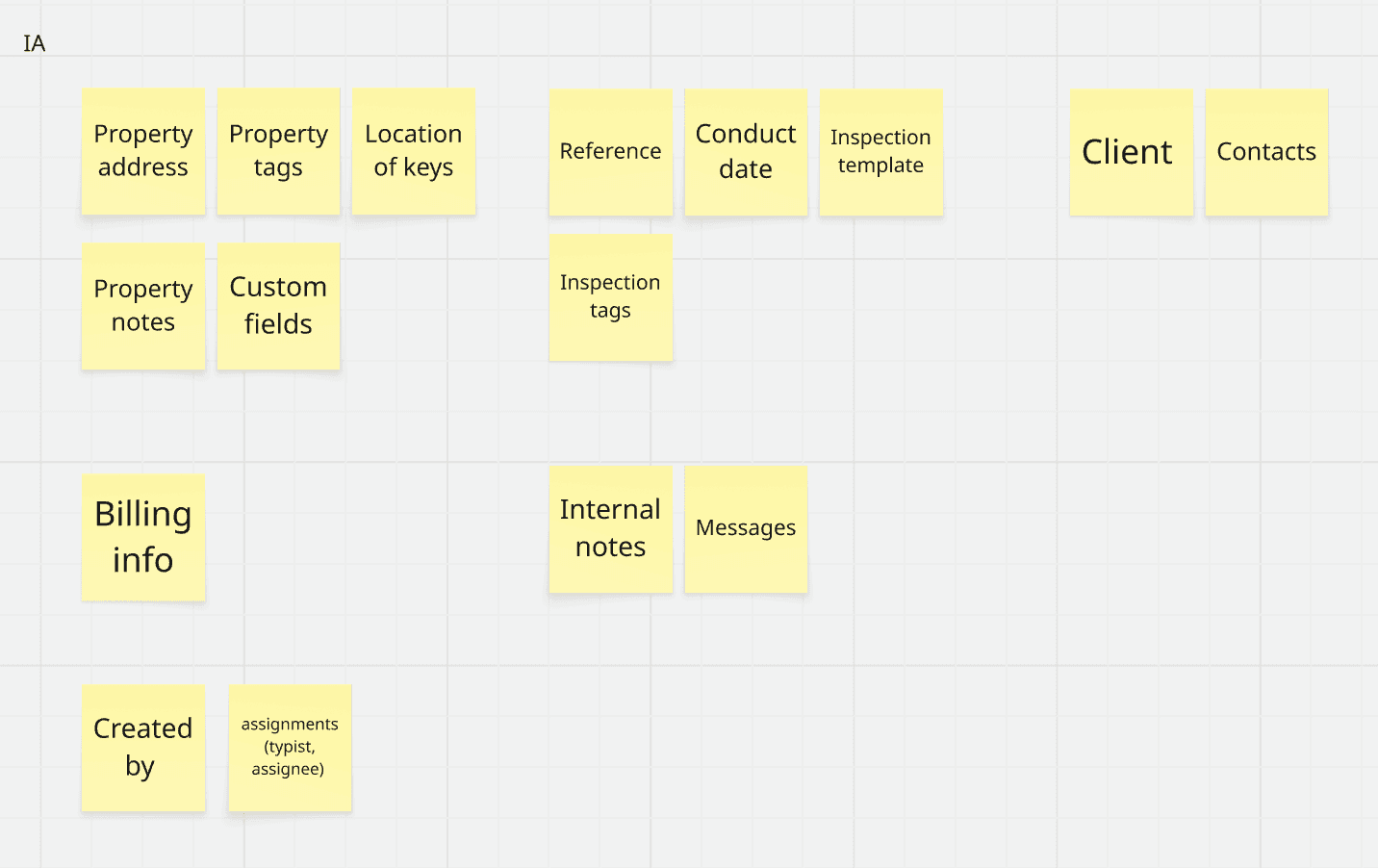
The group also sorted these categories of information into a most to least important hierarchy.
This informed the hierarchy and placement of each element on the page.
The most crucial parts to sit at the top of the page were property and key information, conduct date and inspection reference, and client and contacts. Billing and messaging correspondence was placed in the middle, and who the job was created by and assigned to was deemed as least important.
USER RESEARCH
THE IMPACT
82%
decrease measured in time-on-task to locate and fill out key informations
An instantly scannable, user-intuitive design catered which catered to both power and casual user types.
Streamlining Inspection Management


Product Design
Role: Product Design
Tools: Figma, Miro, Notion
Industry: SaaS, B2B
About the Brand: Property Inspect is a SaaS enterprise product designed for property clerks and managers to complete and deliver inspection
and inventory reports for their clients and property portfolios.
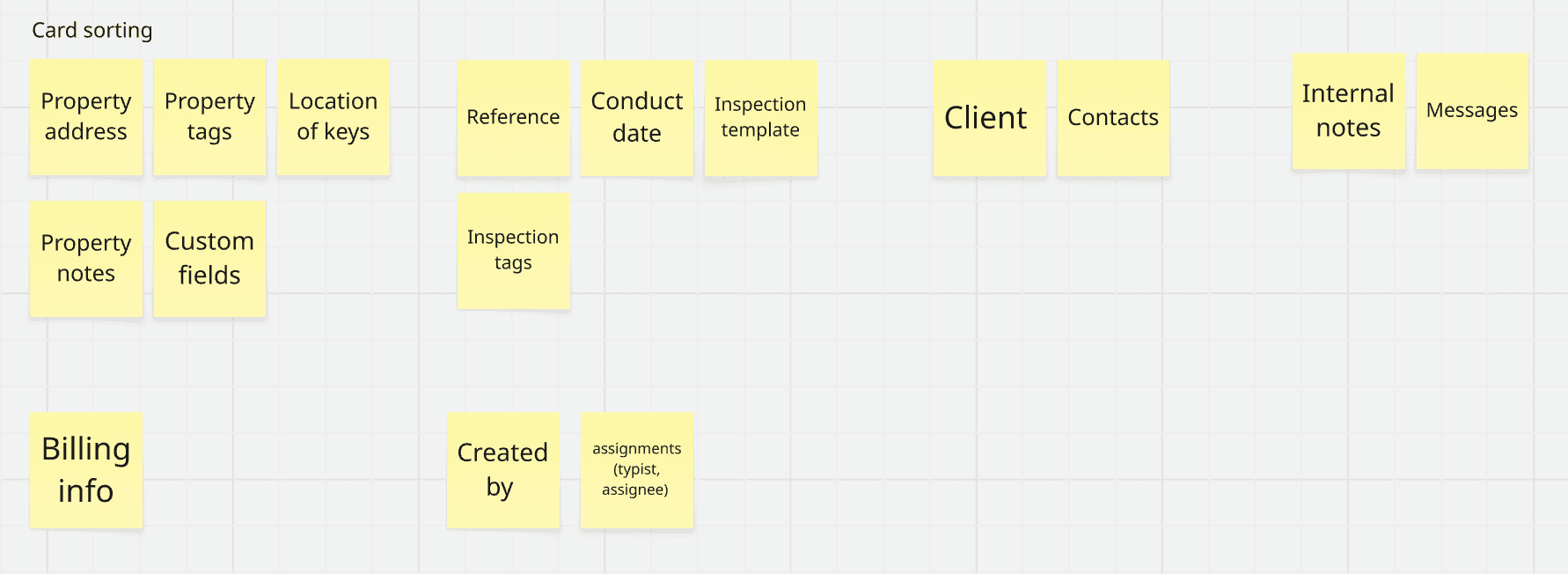
To solve the issue of poorly organised information, I conducted a card sorting exercise with a focus group of older and newer users to discover which pieces of Inspection information they considered to be related to one another. This helped in defining the design and information architecture on the page to be as intuitive and simple to understand for our users as possible.
This exercise resulted in the informations of the Inspections page being sorted into these categories:
What would work for the users?
USER RESEARCH
Creating scannable breadcrumbs
The status breadcrumbs served as an anchoring element of the previous Inspections page design; it was bold, defined and allowed for the job status to be immediately scanned and comprehended. This effect had to be preserved in the redesign.
Initially, I devised a pillbox breadcrumb using the new branding colours, arrow icons and a filled variation to show the current status.
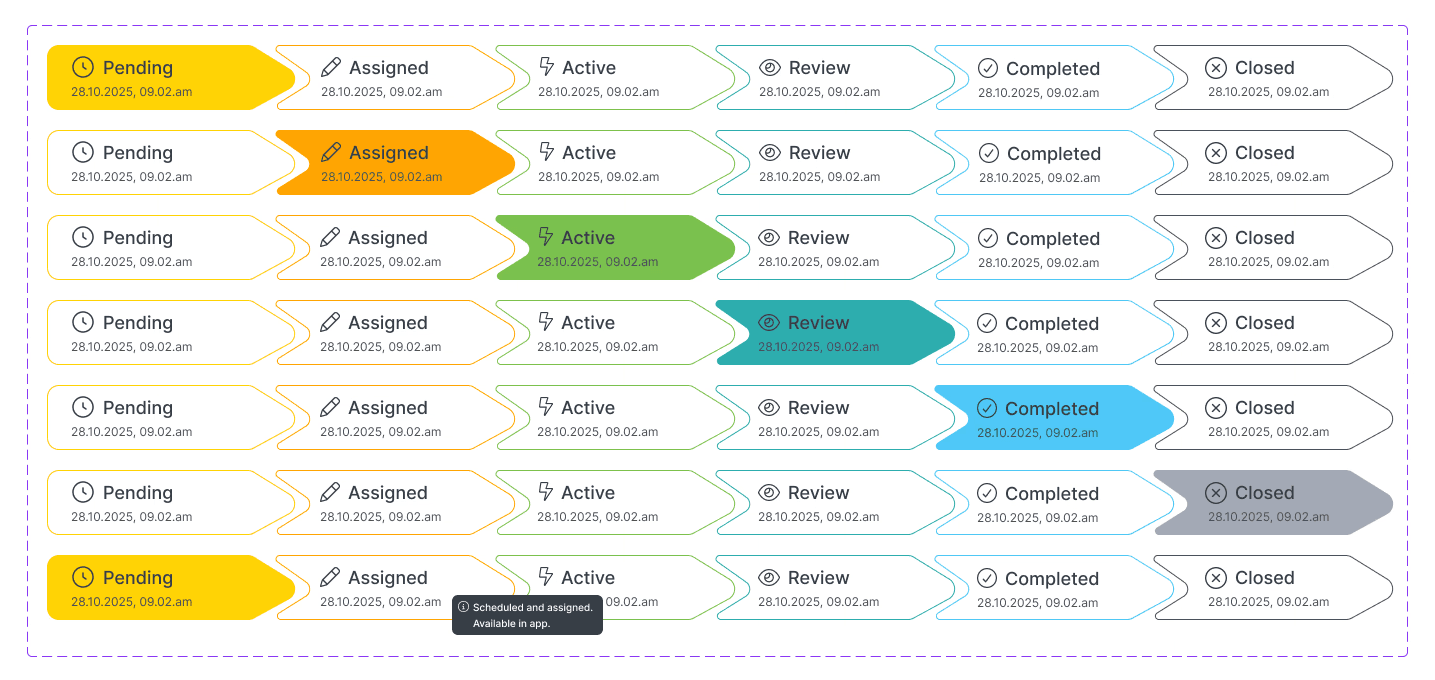
From stakeholder and user feedback, the breadcrumbs felt on-brand, but lacked the strong visual presence and urgency on the page that users found helpful in the previous page design.
Therefore, I developed a palette of bright, scannable colours to represent each status.
Starting with the primary green in our branding, I developed distinct colours which felt aligned to Property Inspect’s brand world.
Using WCAG accessibility checkers, I ensured these colours were up to WCAG 2.2 accessibility standards, so that the status was instantly clear and prominent to all users.
Users and stakeholders alike found these arrow graphics to be a more engaging and clear visual language to indicate job status and progress.
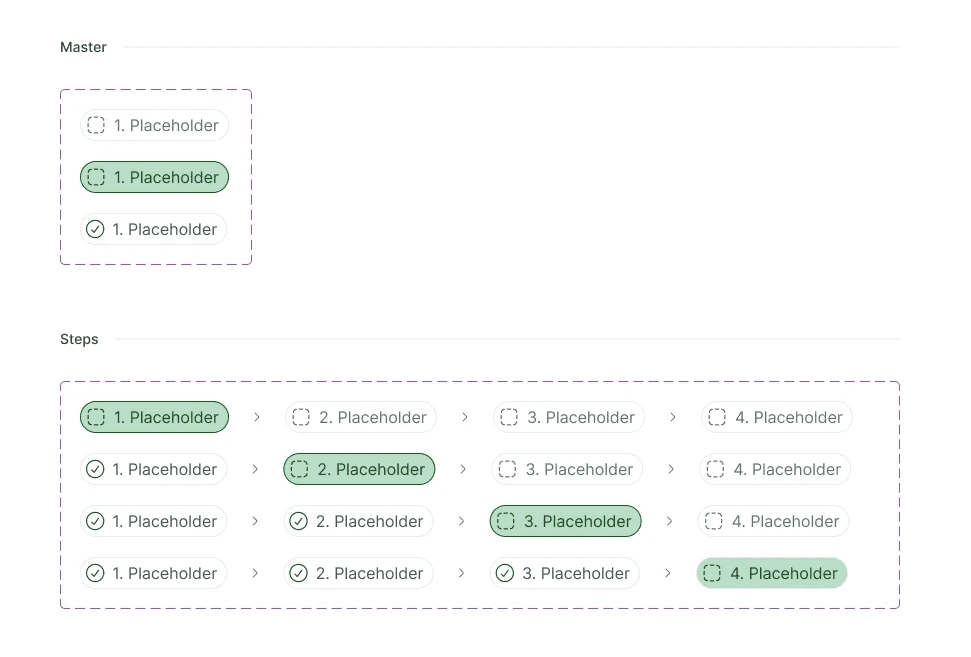

Pillbox breadcrumbs
Arrow breadcrumbs
#FFD304
#69A0C1
#4FC7F7
#2DADAD
#FFA501
#7BC14D
#B996C5
DESIGNING KEY UI COMPONENTS
Making complex breadcrumbs mobile responsive
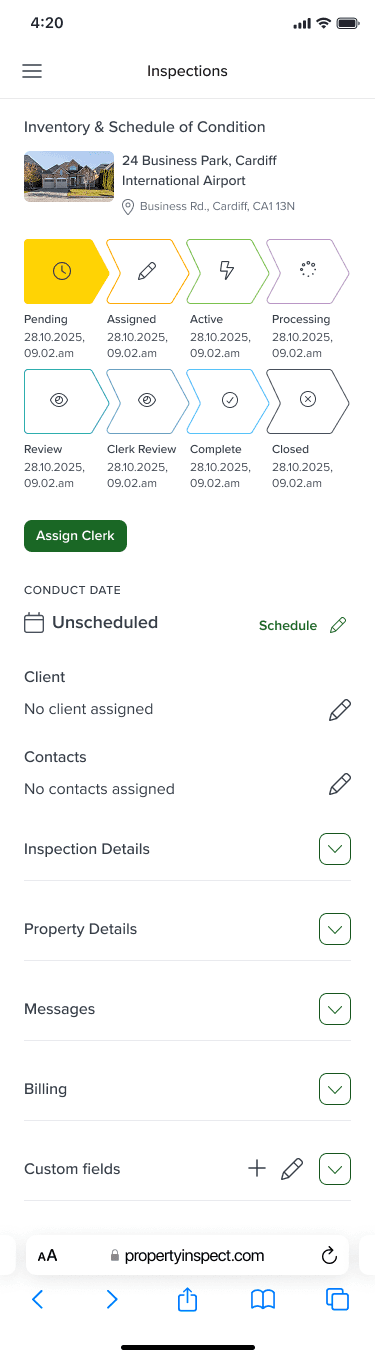
When working to make the status breadcrumbs device responsive across mobile and tablet, the design had to retain all of the numerous steps, details, and its authoritative presence across every screen size.
Simply making the breadcrumbs narrower and smaller made them significantly harder to read on smaller device screens.
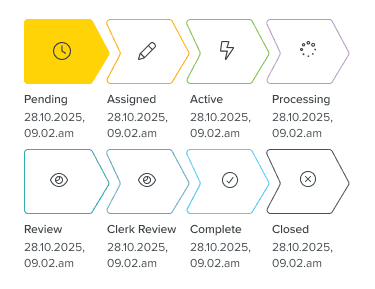
In this responsive component, the status text and date stamps have been taken out and placed underneath the arrow graphics.
This enabled a more succinct and scannable visual by having less information inside the arrow graphics, thus keeping the graphics clean and readable.
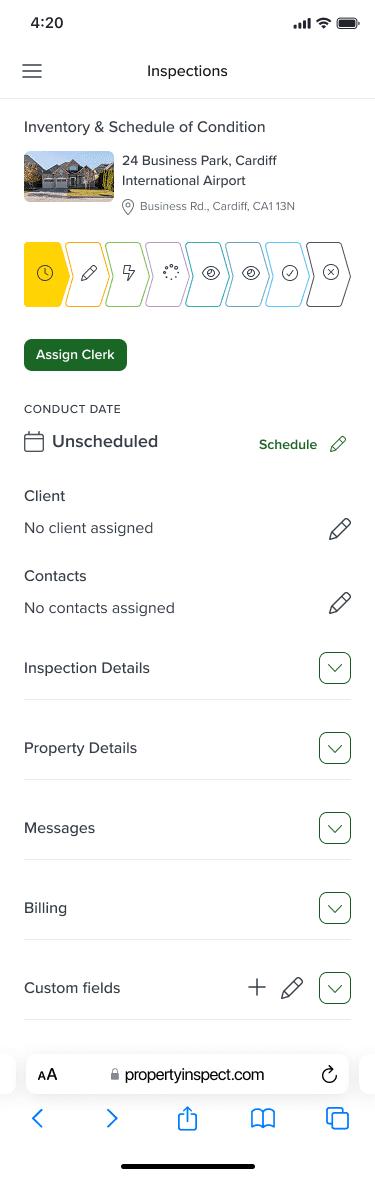
In this version, I tried using the status icons and colours only with no text, as a single row breadcrumb.
This variation was very easily scannable and simple to immediately comprehend. However during screen observations of these mobile prototypes, users revealed they wanted a more context and clarity in the same way the desktop version provided.

DESIGNING KEY UI COMPONENTS
Idea 1
Idea 2
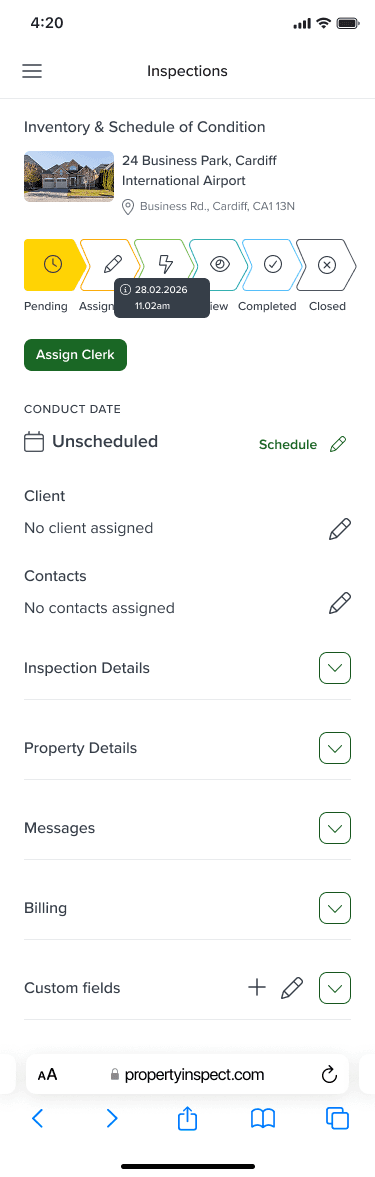
The status titles were included underneath each breadcrumb to include further context and immediate comprehension as per user feedback.
The date and time stamp would be visible when clicked on each step of the status breadcrumb.
This adhered to mobile usability best practices of keeping information on screen in a concise and zoomed-out perspective to avoid crowding and overwhelm on smaller screens.
The clickable breadcrumb functionality ensured that other informations were still available, but presented in a succinct, mobile-friendly UI.
Idea 3
Modals and panels for easy editing
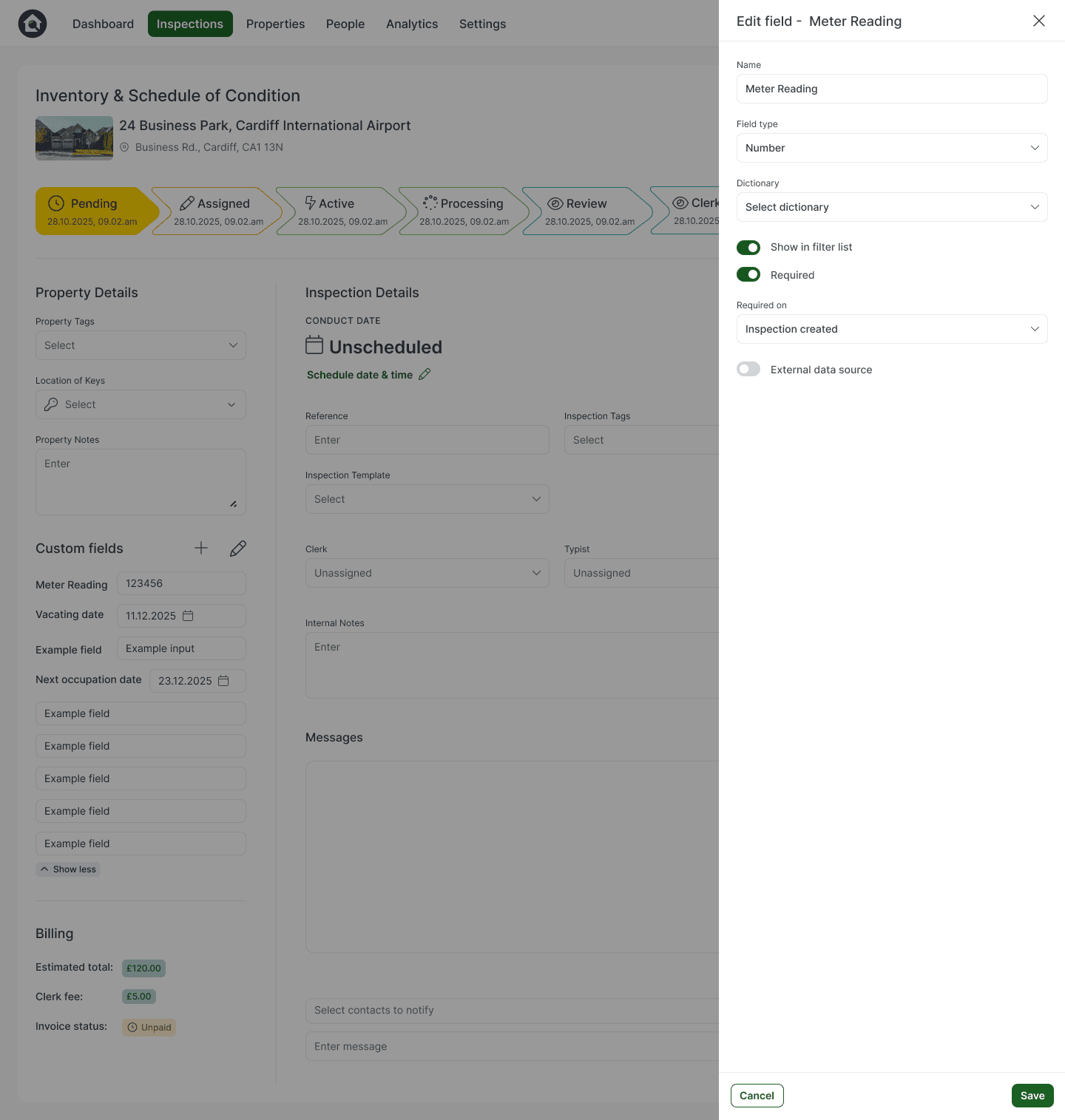
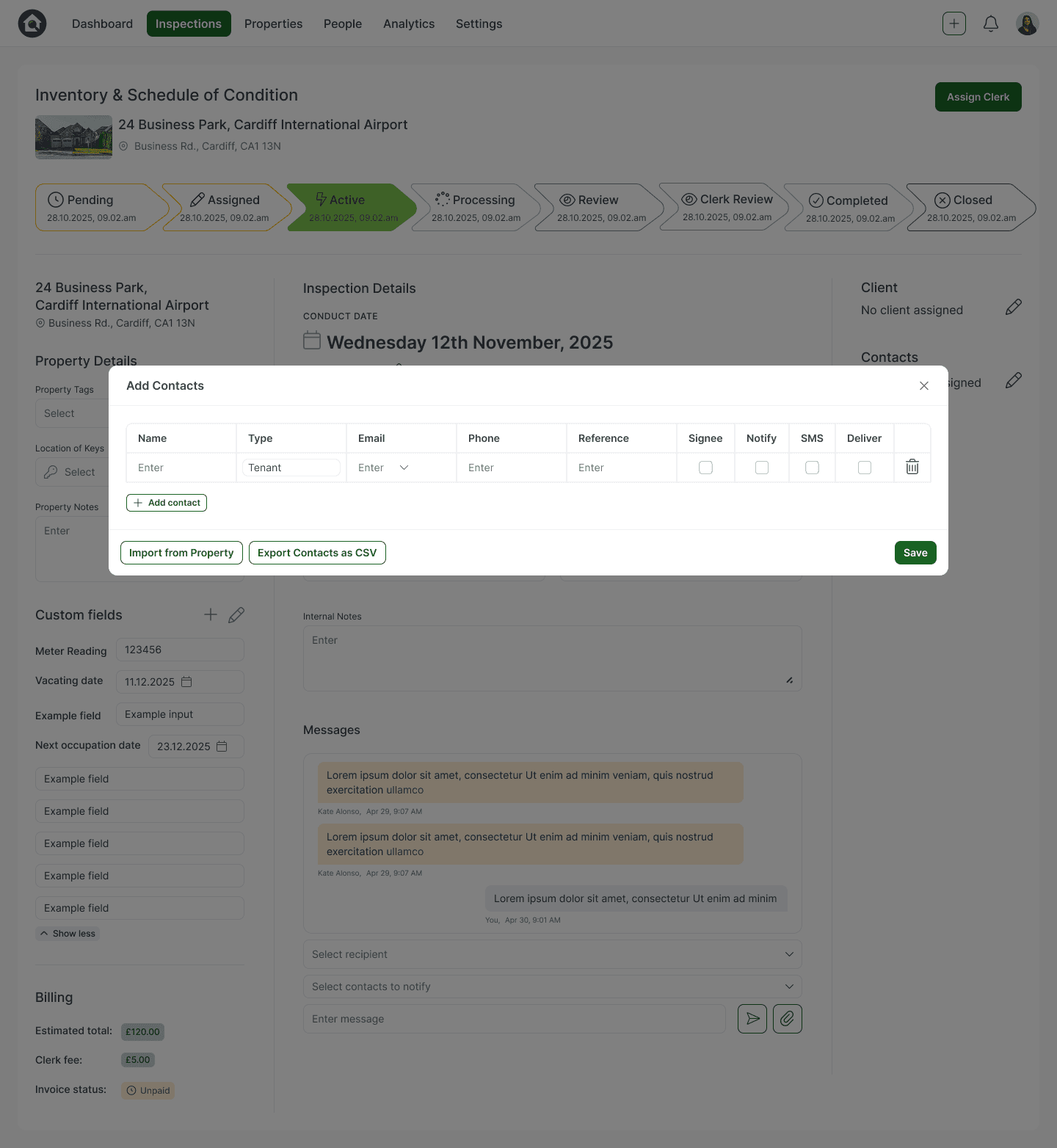
With a workspace that was already populated with multiple key informations, adding further sections or elements to the page when editing the workspace was not the best user-friendly move.
As a result, I employed simple pop-up modals and panels to house actions like adding contacts, clients, or editing and creating custom fields and tags.
This interface decision allowed for users to focus on one task at a time, making their experience of the page less overwhelming and more guided.
Edit custom field slide-in panel
Add contacts modal
ADDING HELPFUL UI